
Slack is one of the greatest collaboration tools we can have in any kind of working environment. Its ability to connect to other 3rd parties, support on devices, and ease of use is really amazing.
Still, the organization’s not setting up some defaults, or some colleagues not using the slack as it should makes sometimes really hard to align.
In this article, you can find out both organization-level details that need to be considered, and also the individuals’ to consider.
Organizations / Admins
- Set channel naming standards: Start generating default names like
#general-{channelname}or#public-{channelname}or#team-{} #chapter-{} #squad-{} #project-{}and so on. This will ensure all users to follow your trend. - Assign some default channels: Assign default channels like announcements, social, news, support, random, thanks-to, welcome, etc. and ensure all users will auto join these. For channels like corporate announcements or company news etc, ensure only selective people can post the first message. (where always enable everyone to send message over thread)
- Link 3rd party apps: Connect them with your Slack. If your organization is using Google or Microsoft, or JIRA, Confluence, ensure these are definitely connected to your slack environment. Also set some default apps for polls, imagery sharing etc for your users to use by default. Also set RSS feeds and assign on some default channels so your users can altogether track the same RSS and comment. You can review all possible slack apps from their app directory.
- Set your users profile sync with your HR system: Provide their manager’s name, title, department, company phone details, users spoken languages by default, allow users them to edit most possible.
- Don’t create new users for 3rd parties in case they already use slack: In slack you can generate connections with other companies so these connected channels can be accessed by both other companies. Users can also switch between organizations to access other organization slacks.
- Share your Slack stats: Share the stats of your slack usage, which channels are most used, which users are your heavy users. This will drive up the interest. As a different subject, don’t forget to subscribe slack status to check their uptime.
Users
Whatever your organization provides you, it won’t make sense if you do not use them. So here are some tooltips for you to consider.
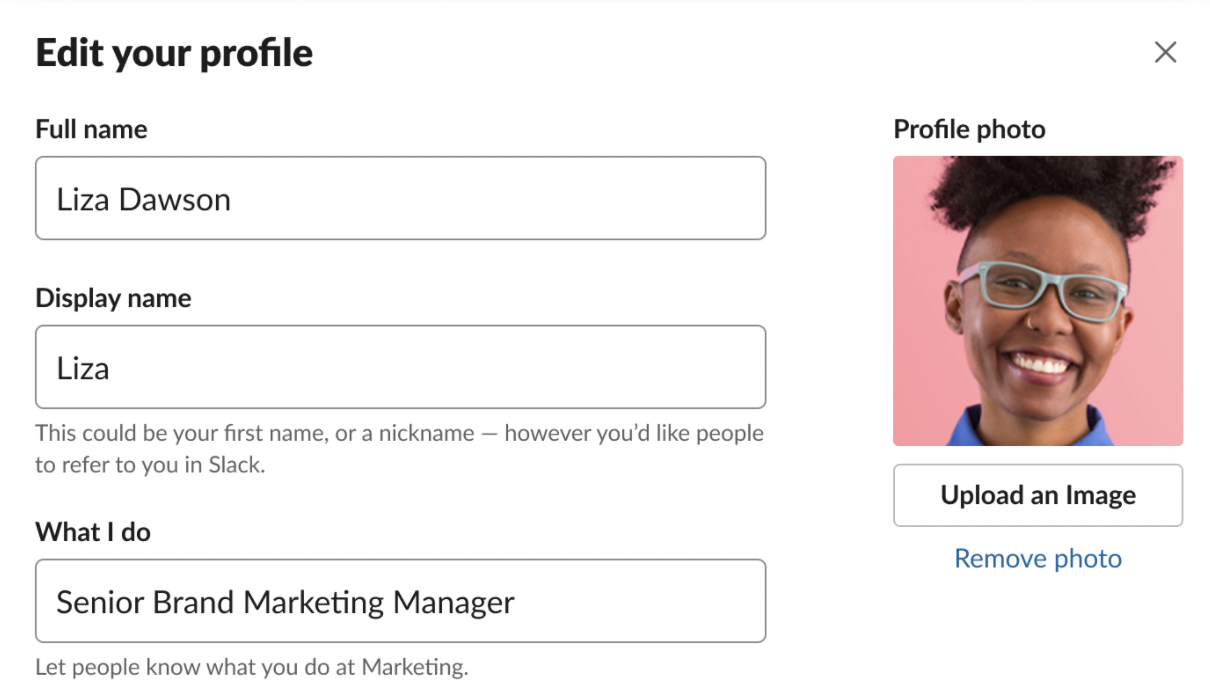
- Update your profile: Especially for the new joiners, it’s better to see who they are writing to, this will allow them to say hi to you once they see you in the office as well. So we suggest for you to have a profile image. You can also set your phone number, email address, and all some other context in case your organization allows you. Set a display name different if you have a nickname or different name to share.
- Set your notification preferences: Slack provides different ways of customization. Go to your slack app preferences to set these to your desire. Go to your Slack app settings and on notifications, you can set them to be notified about “direct messages, mentions & keywords” which would be the best setting for default. You can also change the notification sound and also notification schedules so it wont send you notifications unless pushed by the other user. One of the key settings is also the mobile device notifications settings. You can set “after I’ve been inactive for 1 minute” which would work very well, so you will only receive push to your mobile in case you didn’t respond back or active on your desktop.
- Set Theme, Sidebar and View: How you view Slack is affects your mood even. You can set to view only unread conversations, change the color of the slack, sort alphabetically or recent messages. You can also view as compact or names only or set time clock view changes all under settings as well.
- Use “Set Status”: Once you are in holiday, set your Vacation info, if you are sick or commuting or working from home, these are the ones all can use. Another way of using it is also mentioning which building you are in now if your company has more than 1 offices and your teams are commuting always. You can also sync it with your calendar so it may automatically mention you are in a meeting. (you need to use office or google apps linked to your slack) You can manage all these by clicking your profile image and updating your status.

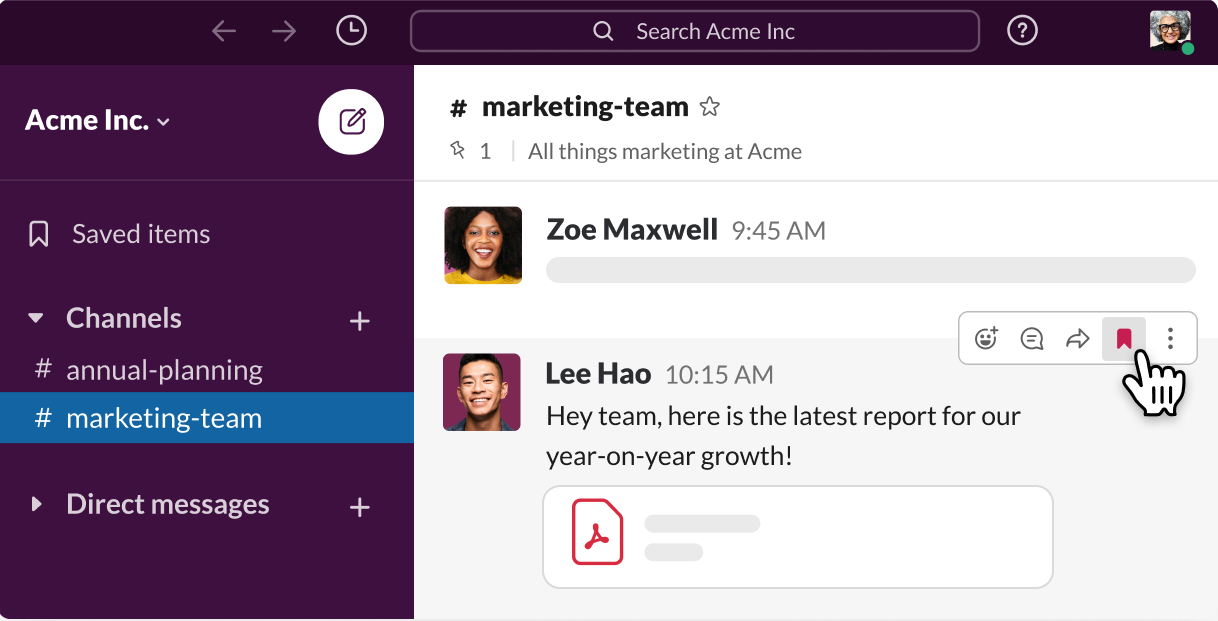
- Use Saved Messages / Reminders: Slack has 2 great features to work as tasks and memories. For any message you receive, in it’s settings you can select “Add to saved items” or under more settings you can select “remind me about this”. Reminders will send you a new message once time is up, all saved items are listed under saved items menu which you can use as accessing easily, or as a task list.
- Do not send frequent messages: Until this tip, we didn’t even type a single message. So the important part is, try to be less and minimal about text. Especially in channels, We suggest you sending one message within a single message. If you send them different messages (by each time clicking enter) they will be notified for each, also they may not reply as a thread as there are more than one messages already. If you always use “enter” to send message accidentally, you can change this to
cmd+enterorctrl+enterunder settings. Go to advanced section under settings, and you can make this change. - Use Reactions rather than text replies: In slack you don’t need to say you agree, or you liked the idea or you are unhappy about it as written. Rather than creating that noise, You can “add a reaction” emoji for each message. Each user can also generate their own emoji, so you will find your own organization way of saying thank you, or being happy. Once you add a reaction to a message, you will automatically start following it’s thread as well.
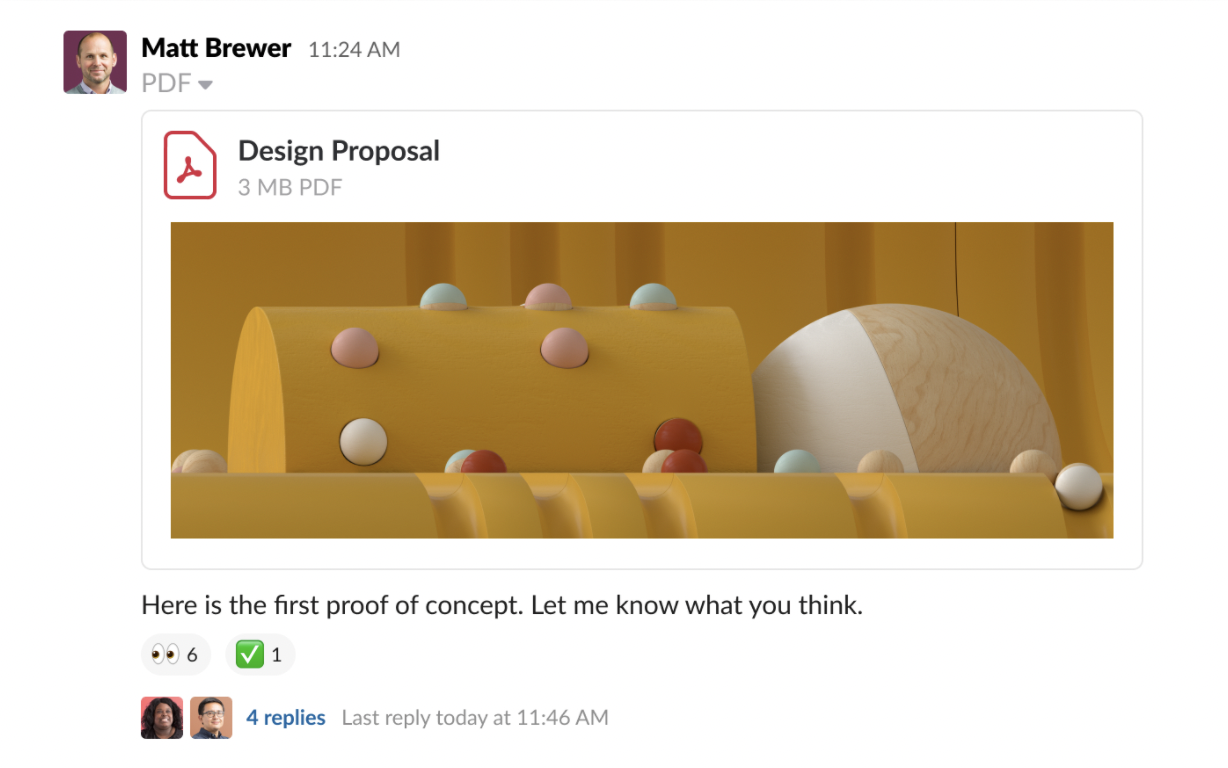
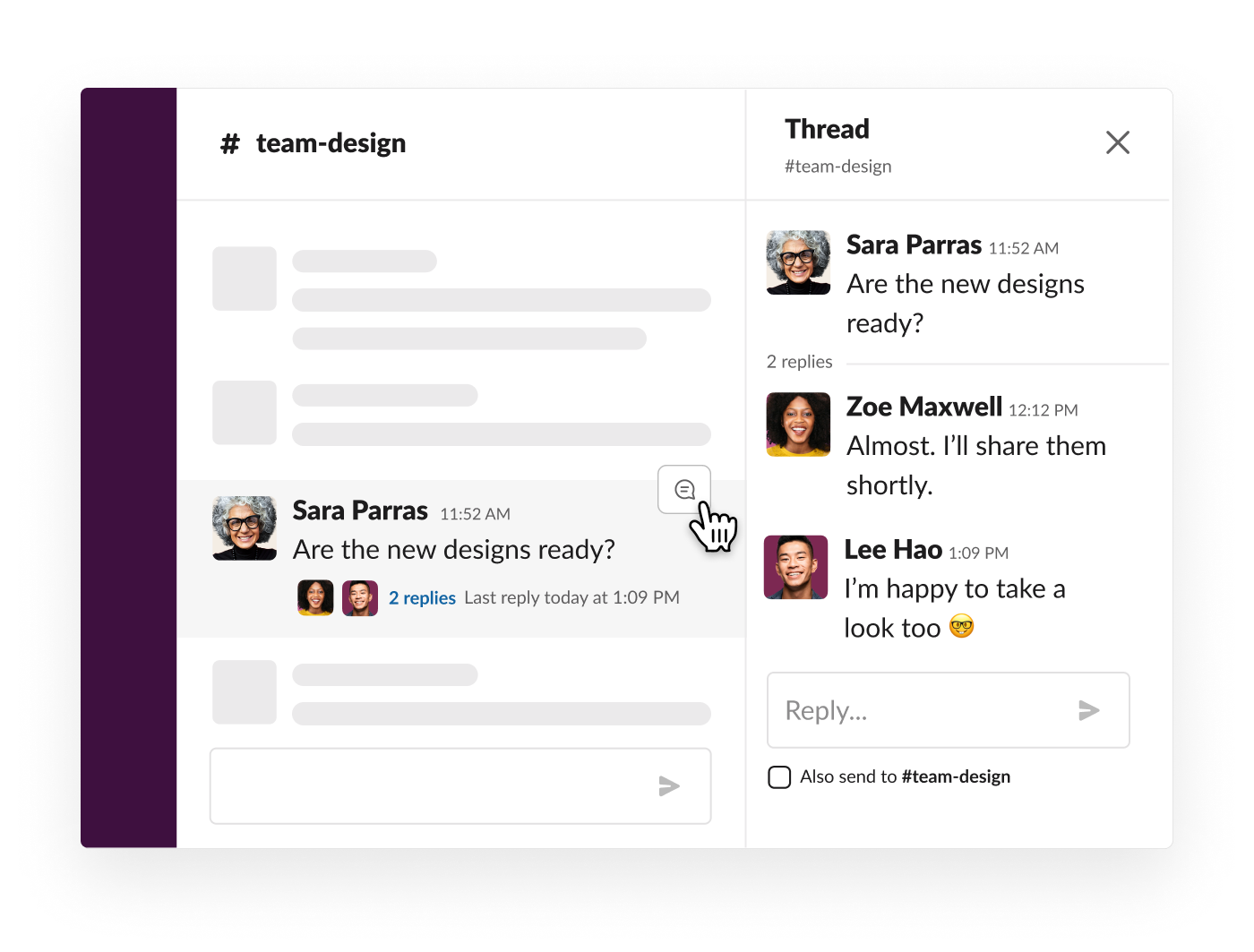
- Use Threads: In case you are going to reply to someone, especially on channels, do not type directly in the channel. Use “Reply to thread.” this will allow all listeners to that channel to not to be disturbed again, and it will make it easy to view each replies on that subject shared in the channel.
- Use @ responsibly:
@usernamewill allow you to tag someone directly. Especially on channels, it will notify the user as most users set no notifications for channel messages. And it will also ensure/allow you to add if that colleague is not in that channel. If you want to ping everyone in the channel, use@channelcommand. If you just want to ping the ones that are not away, you can use@herecommand.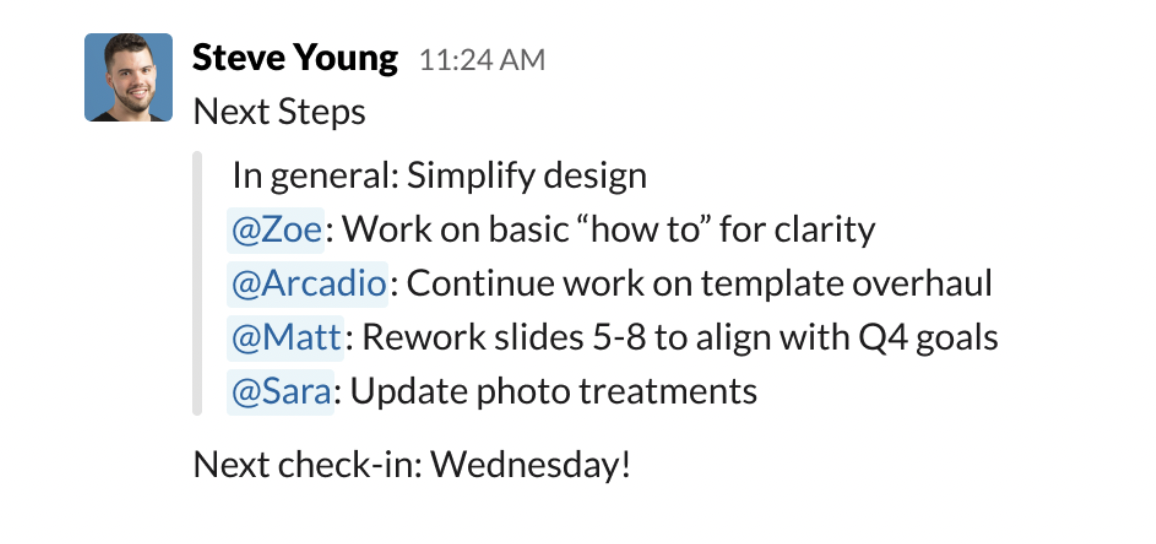
- Update your channels order as sections: In case there are so many different channels you are in, it’s better to create categories for yourself and group channels according to your desire. Click the three dots next to channels section and select “Create new section” to start this.
- Send messages to yourself: In case there are items you would need, not sure where to store them? You can actually send a message to yourself to access them anytime.
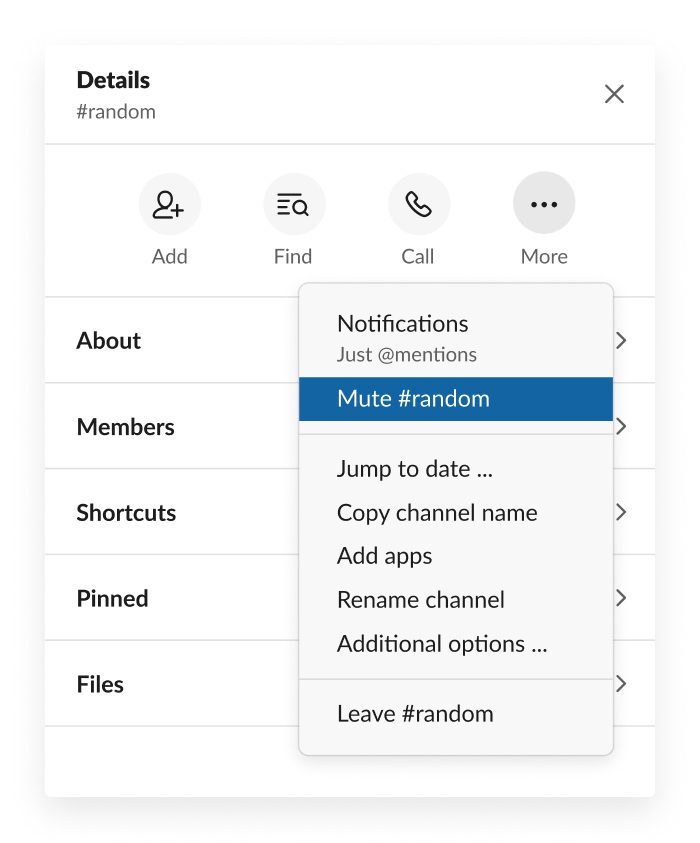
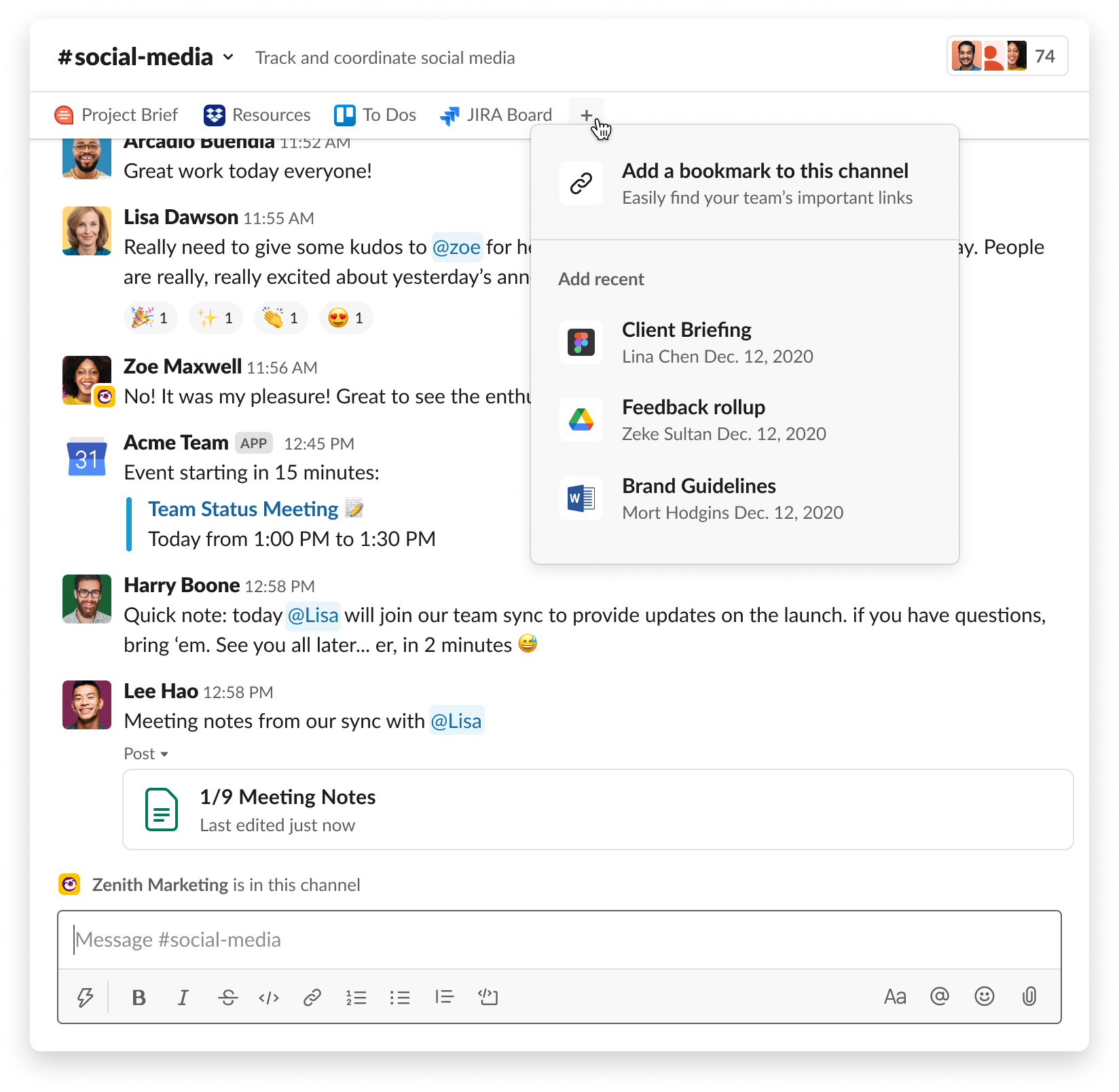
- Set channel details: For each channel, set the topic and description so everyone will understand what is that channel for. If there are separate links or addresses linking to that channel, like your JIRA links, document pdf files in your OneDrive, you can also “add a bookmark” for each channel now. This will allow everyone to quickly access these links as well. If a message shared needs to be highlighted, you can also “Pin to channel” for that message.
- Leave / Archive channels: If you are not interested in the topic at all, or you feel the need for you on that topic is ended, you can leave that channel anytime. Don’t worry, you can join the channel if it’s a public channel anytime as well. If the related subject is really a completed matter, we suggest you to archive the channel.
- Understand the difference between public/private/DM: There are several different ways to connect with your colleagues in Slack. Public channels are the channels that are open to your organization. Anyone in the organization can view the content even without joining the channel, and can join the channel anytime to review the content. Private channels are the channels that are assigned with a group of people. These channels details can only be viewed by the joiners and the slack admins. You can still invite people to a private channel and this will again allow them to see the previous context of the channel. DMs: Direct messages can also be set up to 7 people as a group DM. But once you start a group DM, you cannot add anyone else unless you transfer the DM to a private channel. You can open a new private channel to not to share the previous content, or go to setting under that direct message group to transfer it to a private channel.
 GeekTech